Article · May 15, 2026
How to build a Chrome extension popup with Supabase Auth (step by step)
Wire Supabase Auth into an MV3 popup: bundle the UMD, persist sessions in chrome.storage, recover state on reopen. Working code included.
The Supabase JS SDK is built for browsers that load it via <script type="module"> or a bundled web app. A Chrome extension popup is neither. It’s HTML loaded from chrome-extension://<id>/popup.html, with a content security policy that bans inline scripts and remote code, and no module loader. The standard Supabase quickstart fails without adjustments.
The adjustments aren’t complicated, but they’re scattered. This post puts them in one place.
Why MV3 changes the shape
Two constraints drive everything.
No module loader. You can’t import from node_modules at runtime. The popup runs in a Chrome-managed HTML document with no resolution system for npm packages. You pre-bundle any dependency into a file inside the extension folder before it ships.
Ephemeral context. The popup is a small window that opens on icon click and closes when the user clicks elsewhere. Any JavaScript state, including localStorage, is wiped on close. You need storage that outlives the popup.
A third constraint matters less but trips people up: MV3’s default CSP bans inline scripts and remote code. Every line of JavaScript has to be in a file inside the extension bundle.
UMD (Universal Module Definition): a JavaScript bundle format that works without an import system. When loaded via
<script src>, a UMD bundle attaches itself as a global onwindow. Noimport, norequire, no bundler needed at runtime. The Supabase JS SDK ships a UMD build for exactly this pattern.
Step 1: scaffold the popup HTML
One HTML file, two external scripts. No inline scripts, no module imports.
<!-- extension/popup.html -->
<!DOCTYPE html>
<html>
<head>
  <meta charset="utf-8" />
  <link rel="stylesheet" href="popup.css" />
</head>
<body>
  <div id="app"></div>

  <!-- Supabase SDK as UMD bundle -->
  <script src="supabase.js"></script>

  <!-- Your popup logic -->
  <script src="popup.js"></script>
</body>
</html>
The scripts load in order. supabase.js runs first and attaches window.supabase. Then popup.js uses that global to initialize the auth client.
The manifest.json points at this HTML:
{
  "manifest_version": 3,
  "name": "Your Extension",
  "version": "1.0.0",
  "action": {
    "default_popup": "popup.html"
  },
  "permissions": ["storage"],
  "host_permissions": ["https://your-project-ref.supabase.co/*"]
}
Two things matter for auth: storage permission so the popup can use chrome.storage.local, and host_permissions so the popup can fetch your Supabase URL.
Step 2: bundle the Supabase UMD
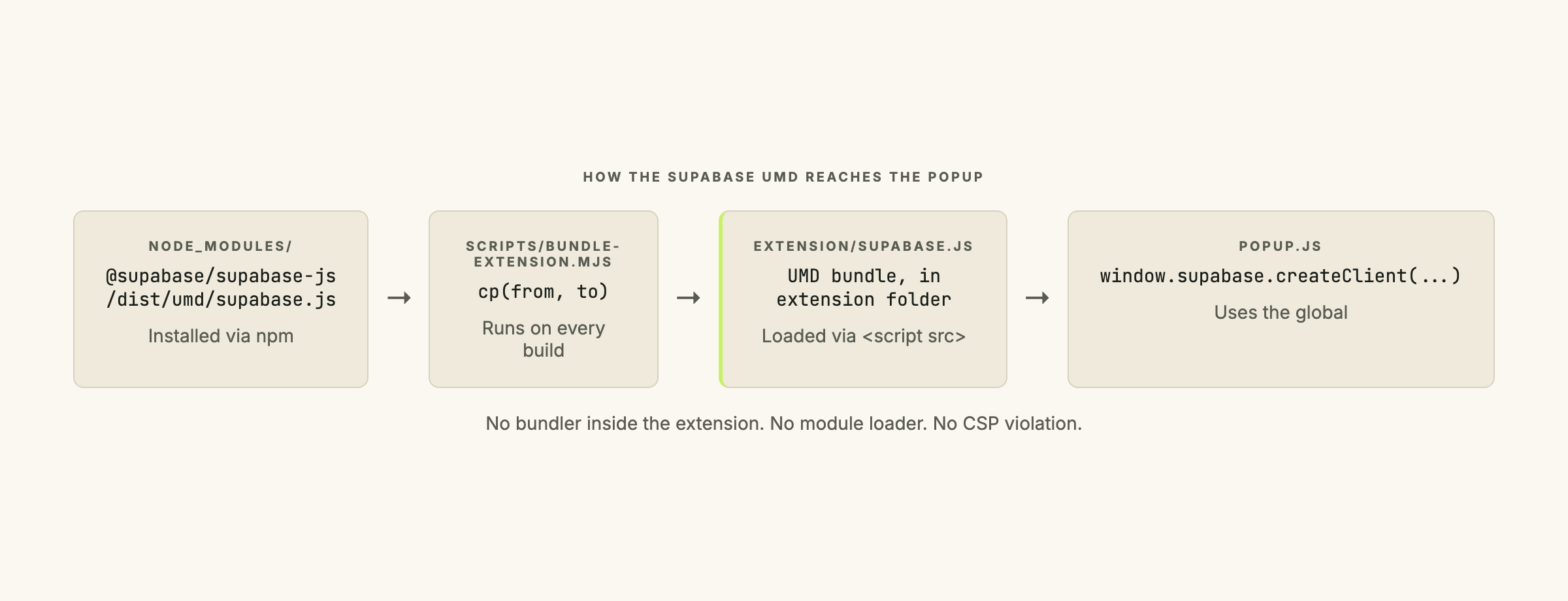
The Supabase npm package ships several formats. The UMD build lives at node_modules/@supabase/supabase-js/dist/umd/supabase.js. Copy it into your extension folder with a small build script:
// scripts/bundle-extension.mjs
import { cp } from 'node:fs/promises';

await cp(
  'node_modules/@supabase/supabase-js/dist/umd/supabase.js',
  'extension/supabase.js'
);

console.log('Bundled Supabase UMD into extension/');
Wire it into package.json:
{
  "scripts": {
    "build:extension": "node scripts/bundle-extension.mjs"
  }
}
Run it once after npm install. Re-run whenever you bump the SDK version. That’s the whole build pipeline: no webpack, no esbuild inside the extension itself.
Step 3: wire the auth UI
// extension/popup.js
const SUPABASE_URL = 'https://your-project-ref.supabase.co';
const SUPABASE_ANON_KEY = 'your-anon-public-key';

const sb = window.supabase.createClient(SUPABASE_URL, SUPABASE_ANON_KEY, {
  auth: {
    storage: chromeStorageAdapter, // defined in step 4
    persistSession: true,
    autoRefreshToken: true,
  },
});

async function init() {
  const { data: { session } } = await sb.auth.getSession();

  if (session) {
    renderLoggedIn(session.user);
  } else {
    renderLoginForm();
  }
}

function renderLoginForm() {
  document.getElementById('app').innerHTML = `
    <h1>Sign in</h1>
    <form id="loginForm">
      <label>Email <input type="email" id="email" required /></label>
      <label>Password <input type="password" id="password" required /></label>
      <button type="submit">Sign in</button>
      <p id="error" class="err" hidden></p>
    </form>
  `;

  document.getElementById('loginForm').addEventListener('submit', async (e) => {
    e.preventDefault();
    const email = document.getElementById('email').value;
    const password = document.getElementById('password').value;
    const errEl = document.getElementById('error');

    const { data, error } = await sb.auth.signInWithPassword({ email, password });

    if (error) {
      errEl.textContent = error.message;
      errEl.hidden = false;
      return;
    }

    renderLoggedIn(data.user);
  });
}

function renderLoggedIn(user) {
  document.getElementById('app').innerHTML = `
    <h1>Signed in as ${user.email}</h1>
    <button id="signOut">Sign out</button>
  `;
  document.getElementById('signOut').addEventListener('click', async () => {
    await sb.auth.signOut();
    renderLoginForm();
  });
}

init();
Two screens, one form, one button. The sb.auth.signInWithPassword call is the standard Supabase auth pattern; the popup just wraps it with minimal HTML.
For an invite-only product, don’t expose a signup link. The pattern is the same as the web-app version covered in two-layer identity models in Supabase: disable public signup at the project level and rely on the service-role invite path for new users.
Step 4: persist the session in chrome.storage.local
chrome.storage.local: a key-value store provided by the Chrome extension APIs. Unlike
localStorage, it’s per-extension (not per-tab), persists across popup opens and browser restarts, and is accessible from both popup and background service worker contexts.
Default Supabase Auth writes the session to localStorage. In an MV3 popup, that storage disappears on close. The fix is a custom storage adapter:
const chromeStorageAdapter = {
  getItem: async (key) => {
    const result = await chrome.storage.local.get([key]);
    return result[key] ?? null;
  },
  setItem: async (key, value) => {
    await chrome.storage.local.set({ [key]: value });
  },
  removeItem: async (key) => {
    await chrome.storage.local.remove([key]);
  },
};
The three methods implement the Web Storage interface on top of chrome.storage.local. Supabase’s auth library calls them to save and load session JSON. Pass this adapter as the storage option when creating the client (the sb initialization in step 3 already does this).
Step 5: handle popup reopen
init() in step 3 already handles it. On every popup open, it calls sb.auth.getSession(), which reads from the storage adapter, which reads from chrome.storage.local. If a session exists, the signed-in view renders immediately. If not, the login form.
User experience: first open, login form, type credentials, signed in. Close popup. Open again. Still signed in. Restart the browser. Open again. Still signed in.
The session has an expiry. Access tokens last roughly an hour; refresh tokens last roughly 7 days (both configurable in your Supabase project). While the access token is valid, autoRefreshToken: true handles renewal invisibly. Once the refresh token expires, getSession() returns null and the login form reappears.
Step 6: sign out cleanly
The sign-out button calls sb.auth.signOut(), which:
- Calls the Supabase server to revoke the refresh token server-side.
- Calls
storage.removeItemon the adapter, deleting the session fromchrome.storage.local. - Fires an
onAuthStateChangeevent you can listen to elsewhere in the extension.
The popup then re-renders the login form. No leftover tokens, no half-signed-out limbo.
Gotcha: CSP errors and remote resources
If you load anything external from your popup (a CDN font, a remote analytics script), the default MV3 content security policy blocks it. The browser console shows: “Refused to load the script because it violates the following Content Security Policy directive.”
You can extend the CSP in the manifest:
{
  "content_security_policy": {
    "extension_pages": "script-src 'self'; object-src 'self'"
  }
}
script-src 'self' allows JavaScript only from inside your extension. The Supabase UMD must live in the extension folder, not on a CDN. Every external origin you add to the CSP is additional attack surface and slows Chrome Web Store review.
Gotcha: OAuth redirect URIs
If you want to add OAuth providers (Google, GitHub) instead of email and password, the standard redirect flow doesn’t work. The browser won’t redirect from accounts.google.com to a chrome-extension:// URL.
Two patterns work. chrome.identity.launchWebAuthFlow is Chrome’s built-in OAuth helper: it opens an OAuth popup, captures the redirect, and returns the result to your extension. The redirect URI is https://<extension-id>.chromiumapp.org/, which Chrome manages. Alternatively, a hosted callback page on your own domain can extract the token from the URL and pass it back to the extension via chrome.runtime.sendMessage.
For most internal-tool extensions, email and password is enough. Add OAuth later if users actually ask.
What’s out of scope
Background service workers, content scripts, and cross-device sync with chrome.storage.sync are all left out deliberately. The popup pattern above is self-contained: everything in the popup, state in chrome.storage.local. A more complex extension might split auth handling into a service worker, but the storage adapter pattern is identical.
The Chrome Web Store submission side of this is covered in shipping a Manifest V3 Chrome extension to the Web Store. The next post in this series on version-bump CI for Chrome extensions covers the discipline that keeps the extension shippable across updates.
If you’re building a Chrome extension with an auth layer and want a second opinion before the first Web Store submission, get in touch. The auth and storage wiring is the kind of thing that’s cheap to get right before shipping and expensive to change after.
Frequently asked questions
Why can't I use <script type="module"> in a Chrome extension popup?
MV3 popup pages are loaded from the chrome-extension:// scheme, which doesn't have a module-resolution system for node_modules. You can use script modules that reference other files inside the extension bundle, but you can't import from npm packages at runtime. The fix is to bundle any npm dependency into a single file in your extension folder before shipping. The Supabase UMD build is designed for exactly this pattern.
Why doesn't localStorage work for Supabase session storage in a popup?
Each popup open creates a new browsing context. The localStorage for that context is wiped when the popup closes, so the Supabase session token disappears every time the user clicks away. chrome.storage.local is per-extension and persists across popup opens, browser restarts, and Chrome updates. Passing a custom storage adapter to the Supabase client redirects all session reads and writes there instead.
What happens when the Supabase access token expires inside a popup?
With autoRefreshToken set to true on the Supabase client, the SDK uses the refresh token to silently fetch a new access token before it expires. The user sees nothing. When the refresh token itself expires (after roughly 7 days of no activity, depending on your project settings), the next getSession() call returns null and the popup shows the login form again.
Can I add Google or GitHub OAuth to a Chrome extension popup?
Not with the standard redirect flow. The browser won't redirect from accounts.google.com back to a chrome-extension:// URL. Two patterns work: chrome.identity.launchWebAuthFlow (Chrome's built-in OAuth helper, which uses a chromiumapp.org redirect URI), or a hosted callback page on your own domain that extracts the token and passes it back to the extension via chrome.runtime.sendMessage. For most internal-tool extensions, email and password is enough and neither pattern is worth the added complexity.
Do I need a background service worker for Supabase Auth?
Not for a simple popup. The pattern in this post puts everything in the popup: auth state lives in chrome.storage.local, the Supabase client initialises on popup open, and getSession() recovers the stored token. A background service worker becomes useful if you need to run tasks while the popup is closed (polling, push handling, token pre-refresh). The auth wiring is the same either way: same client, same storage adapter.