The plan was to ship a Chrome extension in a day. It took six weeks. The code was fine. The async gates around publishing to the Web Store are just not covered in the developer tutorials, and each one has its own queue.
What Manifest V3 actually means for new builds
Manifest V3 (MV3): the third generation of the Chrome extension platform, mandatory for new submissions since 2024. It replaces V2’s long-running background pages with event-driven service workers and bans remote code execution.
If you are starting fresh in 2026, V3 is the only option. V2 extensions could no longer be updated as of June 2025, and Chrome stops loading them entirely on the schedule posted by Google.
The differences from V2 that matter for new builds:
- No background pages. V2 let you keep a long-running script in the background. V3 replaces that with event-driven service workers that wake up on demand and idle when not needed. Any state you want to persist across wake cycles goes to
chrome.storage, not in-memory variables. - No remote code execution. Loading JavaScript from a URL at runtime is banned. Every line of code has to be in the bundle Google reviewed. This forces a build-time approach to all dependencies.
- Declarative network APIs. V2 network interception was imperative: a function ran on every request. V3 is declarative: you publish a list of rules and the browser applies them. This is the change that broke ad blockers.
- More restrictive CSP. Inline scripts in popup HTML are banned by default. Everything goes in external files.
For most internal-tool extensions (dashboard helpers, SSO bridges, time trackers), none of this is a real constraint. For ad blockers or extensions that load remote logic, V3 is a meaningful narrowing.
Choosing the publisher identity
This is the first non-obvious gate. The Chrome Web Store asks: Trader or Non-Trader?
Trader declaration: the EU Digital Services Act requires publishers to self-classify. Trader means your extension is part of a commercial activity. Non-Trader means hobbyist, no commerce involved. Misclassifying is a regulatory risk.
The default is Non-Trader. That default is wrong if you are publishing for a client, a consulting product, or anything that touches your business.
If you declare as Trader, you also have to choose the publisher identity. Your options:
- Sole proprietorship under your personal name. A day to register in most jurisdictions. Personal liability. The publisher name on the listing is your business name.
- LLC or equivalent. 1 to 4 weeks depending on jurisdiction. Limited liability. The publisher name is the LLC.
- An existing client’s entity. Possible if the client wants to own the publisher account. The extension belongs to them, not you, which matters if the engagement ends.
I default to option 1 for solo work and option 2 if the client wants ownership. Either way, decide before you open the publisher account. Switching after submission is messy and can invalidate the existing listing.
Trader verification
Trader verification is what gates publication for Trader-declared accounts. Google verifies your legal name, contact address, and phone number against a real business entity.
What they ask for: a legal business name matching the entity registration, a physical address (residential works for a home-registered sole prop), a real phone number they may call, and sometimes the registration certificate.
Timeline:
- Established business with tax records: 3 to 5 business days.
- Freshly registered entity: 1 to 2 weeks. New registrations propagate slowly through business registries, and the cross-checks wait for that propagation.
The trap: you cannot pre-submit before the entity exists. If you are setting up a new sole prop for this purpose, the order is fixed:
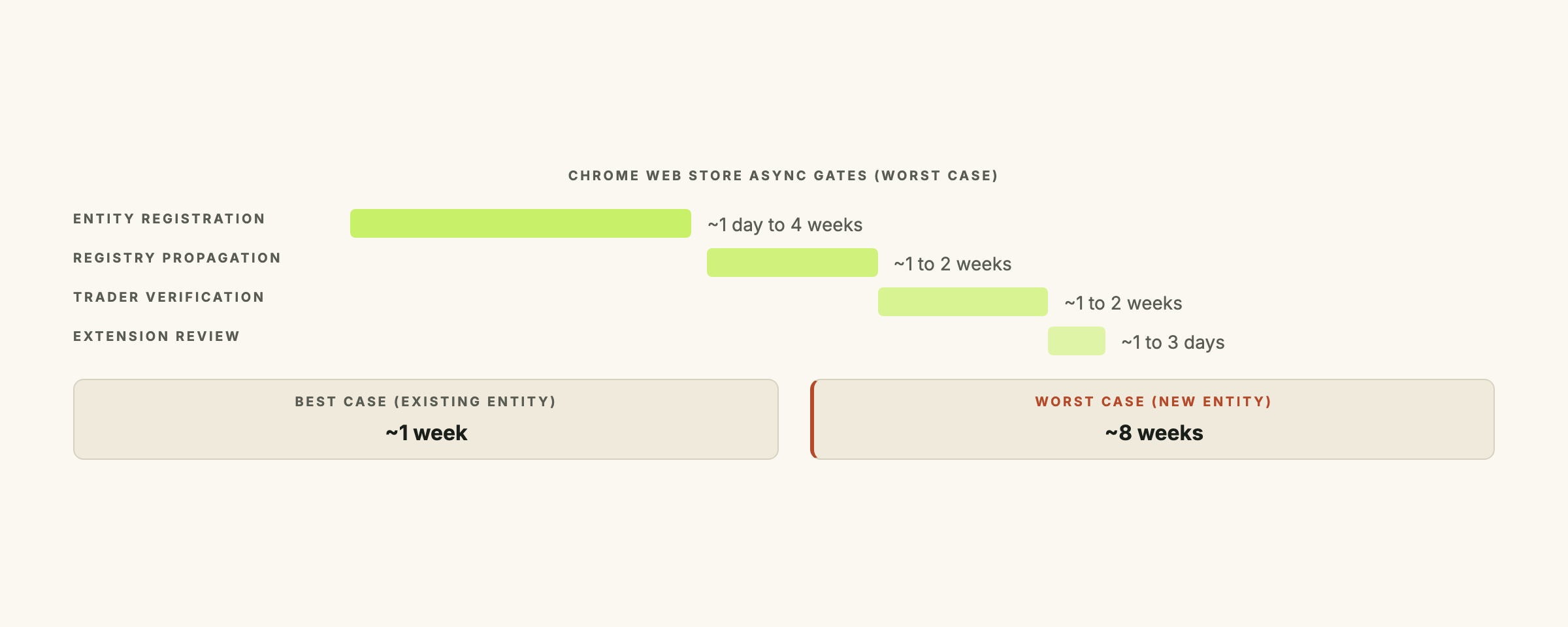
- Register the entity (1 day to 4 weeks depending on jurisdiction).
- Wait for the registration to propagate to business registries (1 to 2 weeks after step 1).
- Submit Trader verification (1 to 2 weeks of Google’s review).
- Now you can submit the extension for review.
That is 3 to 8 weeks before you can submit the first extension. Plan for it or back up the whole project to make the math work.
The Chrome Web Store fee
A flat USD 5 one-time fee, payable when you create the developer account. It covers all your extensions, all their versions, forever. Pay it first. The rejection message when you forget (“your account is not eligible to publish”) is not obvious about the cause.
Submission: the listing fields that catch people
Name, description, screenshots, and category are all obvious. These are not:
- Permissions. Every permission you list (
storage,tabs,identity,<all_urls>) prompts the user at install and is reviewed by Google. Fewer permissions means faster review and a less alarming install screen. Audit your manifest before submitting. I have seen extensions addtabsfor one debug call that never shipped. - Host permissions. Each host you access via
fetchorchrome.cookiesis a separate user-facing prompt. Use narrow patterns (https://api.yourservice.com/*) rather than wildcards (<all_urls>); reviewers prefer it and so do users. - Privacy policy URL. Required if you process any user data, including auth tokens. Most extensions need one. A single page on your own site is fine.
- Distribution. Public (anyone can install), Unlisted (anyone with the URL, but it does not appear in search), or Private (specific Google Workspace domains only). For an invite-only internal tool, Unlisted is the right call.
The review queue and what slows it down
Google’s stated SLA per the Chrome Web Store review docs: 90% of submissions reviewed within 3 days. In my experience, first submissions take 1 to 3 days; routine updates are often same-day.
What triggers a slower review:
- New permissions in an update. Adding
tabsor a new host pattern mid-product triggers a deeper review. Plan for a week, not a day. - Permissions that don’t obviously match the feature set. A reviewer asks “why does this need
clipboardWrite?” If the answer is not obvious from the screenshots and description, they reject and ask. - Trader status mismatch. Non-Trader account with business or pricing language in the listing description gets flagged.
If you land on the slow path, the review portal gives you nothing. You wait. After three weeks with no response, contact developer support and ask. The issue is usually small.
Post-approval: the URL slug gotcha
Once approved, your extension has a permanent 32-character ID. The listing URL looks like this:
https://chromewebstore.google.com/detail/your-extension-name/jmiomhhobiffkdbkogdfnhocdjgfgmabThe slug (your-extension-name) is the human-readable middle segment. Google’s documentation suggests both URL forms are equivalent. They are not.
The slug-bearing form returns rendered HTML immediately. Browsers, RSS readers, link previewers, anything that fetches the URL can parse the title and metadata.
The slug-less form (chromewebstore.google.com/detail/jmiomhhobiffkdbkogdfnhocdjgfgmab) returns a shell page; the actual content loads via JavaScript after first paint. For most users in Chrome or Firefox this works. For Safari, Brave with strict shields, in-app browsers, and any tool that does not execute JS, the page is blank.
If you are putting the install URL in an email, an in-app CTA, or a docs page, always use the slug-bearing form. The dashboard’s “copy URL” button does not always give you the slug. Check before you paste.
The CTA swap nobody mentions
Before publication, you distributed the extension as a ZIP file via an internal page on your site. Users downloaded it and side-loaded into Chrome via Developer mode. The CTA was “Download ZIP.”
Once the extension is on the Web Store, “Install from Chrome Web Store” becomes the primary CTA. The ZIP path moves behind a collapsed disclosure (“Manual install for IT-managed environments”). The Web Store install is one click; side-load is six manual steps. Web Store handles updates automatically; ZIP does not. Web Store installs carry a review badge that users can actually see.
This is a five-minute CTA swap on your install page. Do it the same day the extension goes live.
Version-drift discipline
Every update to a published Chrome extension must bump manifest.json’s version field. Forget the bump and the Web Store rejects the upload: “the version of the uploaded package is not later than the published version.” The trap: a developer ships a fix to extension/ and forgets the bump, then the next release attempt fails and nobody knows why.
Two-layer guard:
- Pre-commit hook (local, fast feedback): checks if any file under
extension/changed in the staged diff, and if so, verifiesextension/manifest.jsonwas also modified. - GitHub Actions workflow (CI, the gate that cannot be
--no-verify’d): the same check on every PR that touchesextension/.
The full pattern is in the next post in this series on Chrome extension version-bump CI. Both layers matter. The local hook is for speed; only the CI gate cannot be bypassed.
Real-user dogfood as the final gate
After approval, install the extension from the Web Store using a Google account that has nothing to do with your developer account. Use it as a real user. Verify auth, verify updates, verify it does not call localhost.
I have seen extensions pass Web Store review and fail the dogfood install because of a hardcoded localhost URL, a permission requested but not granted at runtime, or an OAuth redirect URI that did not include the chrome-extension://<id>/... form. The dogfood catches what review does not.
For auth specifically, the next post in this series covers building a Chrome extension popup with Supabase Auth end to end. MV3 has no module system, so the SDK ships as a UMD bundle inside the extension folder. That has its own constraints.
What to plan for
If you are setting up a new business entity for the publisher account, allow 3 to 8 weeks between “let’s build a Chrome extension” and “live on the Web Store.” Pay the USD 5 fee first. Submit Trader verification before you submit the extension; they are independent queues. Minimize permissions in the initial submission. Use the slug-bearing URL everywhere. Set up the version-bump CI gate before the second update. Dogfood the install with a non-developer Google account before calling it shipped.
I have run this sequence on a production Chrome extension, so the timeline above is calibrated to real experience.
If you are building a Chrome extension for an internal tool and want a second pair of eyes on the submission plan before the entity registration starts, get in touch. A one-hour planning session produces a written timeline with the dependencies named, which is what you need before you start the entity-registration clock.
Frequently asked questions
What is Manifest V3 and why did Google switch from V2?
Manifest V3 is the third generation of the Chrome extension platform, mandatory for new submissions since 2024 and the only supported version for new uploads since June 2025. V2 allowed long-running background pages and remote code execution, both of which made review and runtime analysis hard. V3 replaces background pages with event-driven service workers, bans remote code execution, and requires declarative APIs for network interception (which is what made V3 controversial with ad-blocker developers).
Do I need a registered business to publish a Chrome extension?
Not strictly. You can publish as a non-Trader (a hobbyist developer) if your extension is free, has no monetization, and is not part of a business activity. The moment any of those change (you charge for it, you embed it in a paid service, you offer it through a company), you must declare as a Trader under EU Digital Services Act rules. Trader status requires a verifiable legal name, contact address, and phone number. A sole proprietorship is enough; you do not need an LLC.
How long does Trader verification take in 2026?
For an established business with existing tax records, verification typically completes in a few business days once you upload the requested documents. For a new entity (a freshly registered sole proprietorship or LLC), expect 1 to 2 weeks for Google to receive, review, and confirm the identity documents. The clock starts when you submit; you cannot pre-verify before you have the entity registered. Plan the entity registration to complete at least 2 weeks before your target launch date.
Why does my Chrome Web Store URL load blank without the slug?
The Chrome Web Store has two URL forms for any listing: `chromewebstore.google.com/detail/
Can I update the extension after it's published without a re-review?
No. Every update goes through review. Most updates that do not change permissions or host permissions review within 1 to 3 days (Google's stated SLA is "90% of submissions reviewed within 3 days"). Updates that add new permissions or new host patterns trigger a deeper review that can take longer, sometimes 2 weeks. The fix is to minimize permissions on the initial submission and avoid adding more later.