You create a Bubble sub-app with its database copied, upgrade it, and the Live database is empty. When I did this migration, “Create sub-app with database” copied to Dev only, and an upgraded sub-app got a Live version with no data in it. This is the order I used to get one client’s slice of live data into their own sub-app.
Sub-app: A separate Bubble app made from a parent app. It has its own database, users, Privacy Rules and custom domain.
What stops live data from arriving in the sub-app?
Three things, in the order you meet them.
- "Create sub-app with database" copies to Dev only.It used to fill Live too.
- A new sub-app starts on the Free plan.That plan has no Live database to copy into.
- Upgrading creates a Live that is empty.None of the main app's Live data comes with it.
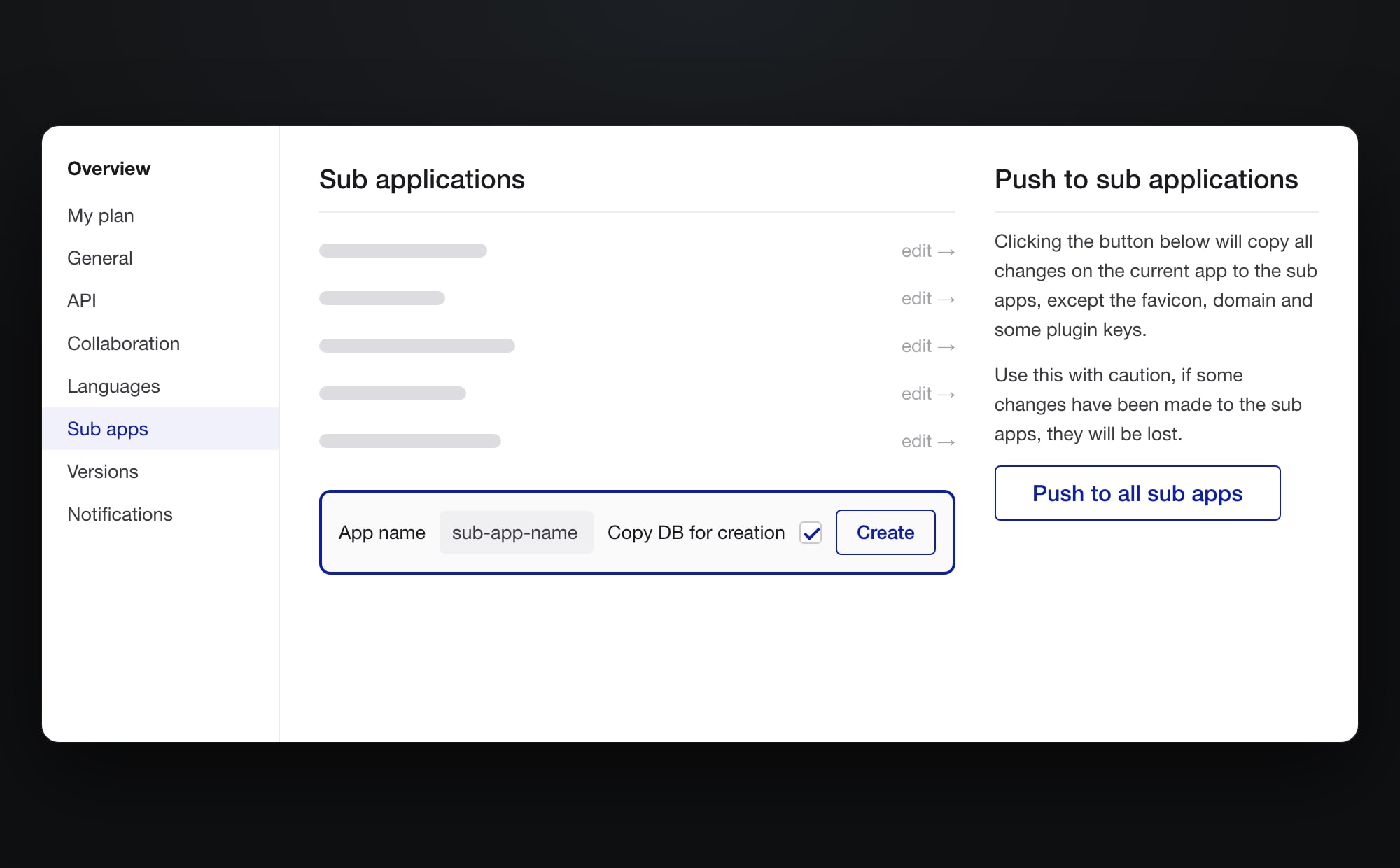
This is how it behaved in my migration. Check Bubble’s current behaviour before you plan around it.
In what order do I move the data?
The client needed their own sub-app holding only their slice of live data, with every relation and its history. Bubble has no button for that. This is the order I used, with the place each step ran.
- Main app · Dev Disabled data triggers on dev branches.
- Main app · Dev Copied the data to be migrated from Live into Dev, as a temporary copy.
- Sub-app · Dev Created the sub-app with a copy of the database.
- Sub-app · Dev Checked all data.
- Main app · Dev Removed the copy by restoring Dev to before step 2.
- Main app · Dev Turned data triggers back on.
- Sub-app · Live Upgraded the sub-app, creating its empty Live.
- Sub-app · Dev Removed everything outside the client's slice, following the relations.
- Sub-app · Dev Tested.
- Sub-app · Live Copied the sub-app's Dev database to Live.
- Sub-app · Live Tested.
- Sub-app · Live Onboarded the client.
This was a one-off data migration, not a test setup. Live is only the source of the copy in step 2, and no step writes to it. Data triggers stay off while the copy exists, the AI's Bubble MCP access stays off until it is gone, and step 5 removes it.
How do I cut the sub-app down to one client?
Step 8 decides whether the sub-app is right. The client needed every relation and its history, so I removed everything outside their slice by following the relations.
What do I keep off while the copy exists?
Two things stay off while live data sits in a Dev database. Data triggers go off in step 1 and come back on in step 6, after the copy is removed. Any AI tool’s access to the app stays off too: I keep Bubble’s MCP access off until no live data is left in any Dev.
If you work with branches, my Bubble version control guide covers how I set them up, and how sub-apps work in Bubble starts from zero. How I run the rest of a Bubble app is on my Bubble.io developer page.
Common questions
Does "Create sub-app with database" copy data to the sub-app's Live database?
In my migration it copied to Dev only. It used to fill Live too. Check what Bubble does now before you plan around either behaviour.
Why is the Live database of a new sub-app empty?
A new sub-app starts on the Free plan, which has no Live database to copy into. Upgrading creates a Live that is empty, and none of the main app's Live data comes with it.
How do I get the data from the sub-app's Dev database into its Live database?
In my order it is step 10: copy the sub-app's Dev database to its Live database, then test. The steps before it get the right data into the sub-app's Dev.